


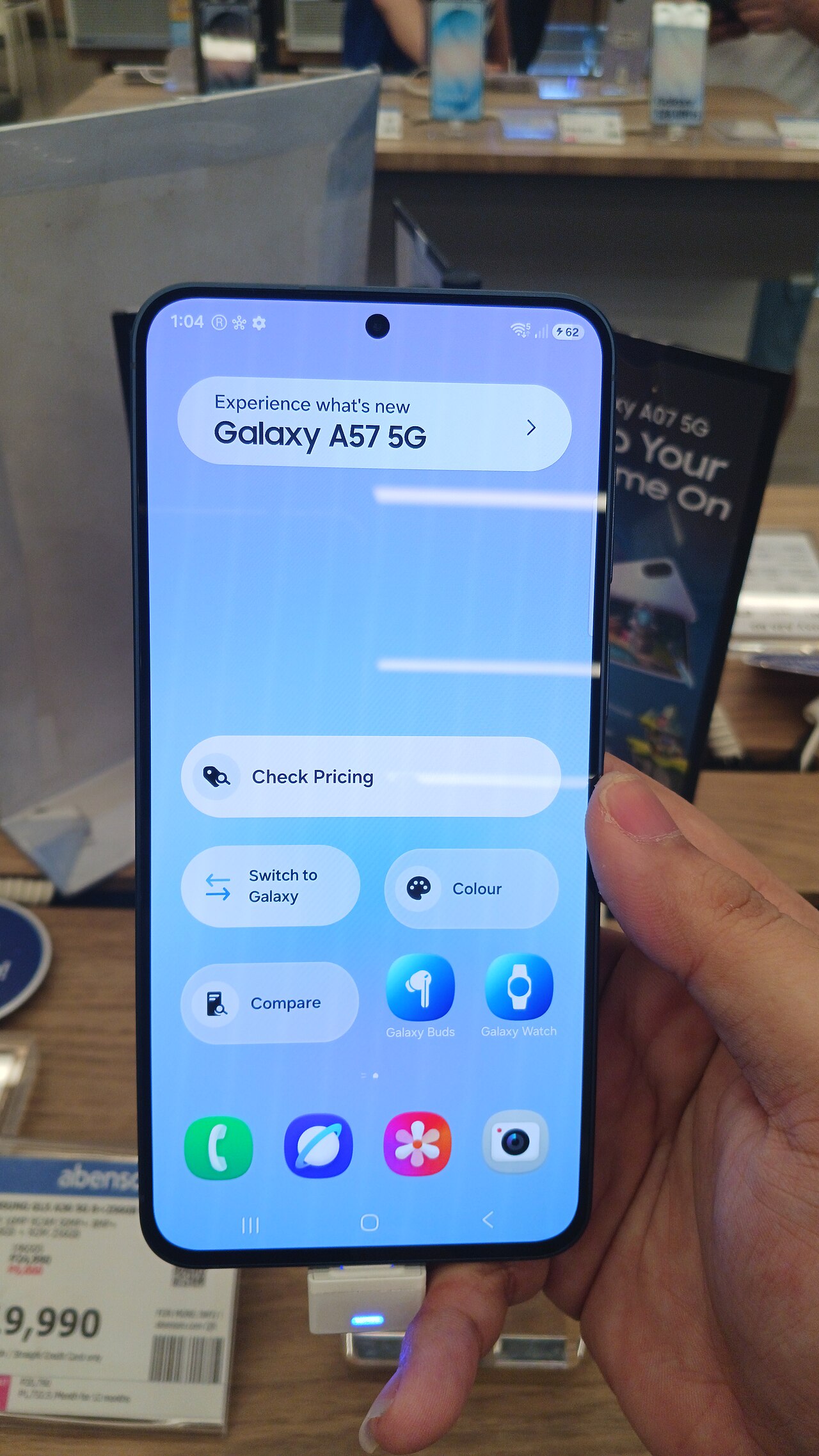
Samsung Galaxy A series updates are crucial for keeping your device running smoothly. This article will guide you on how to check for updates effectively.
Why Samsung Galaxy A series updates matter
The importance of Samsung Galaxy A series updates cannot be overstated, as they play a crucial role in enhancing device performance and security. Regular updates ensure that users benefit from improved features and functionalities, keeping their devices running smoothly.
Moreover, these updates often include essential security patches that protect user data from vulnerabilities. With the increasing frequency of cyber threats, timely updates are vital for safeguarding personal information.
Additionally, software upgrades can lead to better battery management and system stability, providing users with a more efficient experience. Samsung’s commitment to updating its Galaxy A series devices demonstrates the brand’s dedication to customer satisfaction and device longevity.
Understanding how to check for updates can empower users to make the most out of their devices. Staying updated is not just about new features; it’s about a safer, more reliable mobile experience.
How to check for updates on your Galaxy A phone
To ensure your Samsung Galaxy A series phone is running the latest software, it’s important to know how to check for updates. Follow these simple steps:
- Open the Settings app: Locate the gear icon on your home screen or app drawer and tap on it.
- Scroll down and select Software Update: This option will direct you to the update section.
- Tap on Download and Install: Your device will check for any available updates.
- Follow the prompts: If an update is available, follow the on-screen instructions to download and install it.
Keeping your Galaxy A series phone updated not only enhances performance but also ensures you have the latest features and security patches. Regularly checking for updates is a quick and effective way to maintain your device.
Top features in the latest Galaxy A series updates
The latest updates for the Samsung Galaxy A series bring several exciting features that enhance user experience and performance. Here are some of the top features included in these updates:
- Improved Camera Functionality: Enhanced photo and video capabilities allow for better low-light performance and new shooting modes.
- Battery Optimization: Users can expect longer battery life with improved power management features.
- Security Patches: Regular updates ensure that your device is protected against the latest vulnerabilities.
- User Interface Enhancements: The updates introduce a more intuitive interface for easier navigation and usability.
- Performance Boosts: Optimizations lead to smoother app performance and quicker load times.
These enhancements in the Samsung Galaxy A series updates reflect the brand’s commitment to providing a quality experience for its users.
Common issues after updating Samsung Galaxy A devices
After updating your Samsung Galaxy A devices, you may encounter some common issues that can disrupt your experience. Understanding these problems can help you resolve them quickly.
- Battery Drain: Some users report increased battery consumption post-update. This may be due to background processes that need to recalibrate.
- App Crashes: Certain applications might not function properly after an update. Ensure all apps are updated to their latest versions from the Play Store.
- Slow Performance: Initial sluggishness can occur as the system optimizes itself after the update. A simple restart often resolves this.
- Connectivity Issues: Problems with Wi-Fi or Bluetooth connectivity can arise, usually fixable through a reset of the network settings.
By being aware of these common issues following Samsung Galaxy A series updates, users can troubleshoot effectively and enjoy the improvements brought by the latest software versions.
Tips for optimizing your Galaxy A phone post-update
After updating your Samsung Galaxy A phone, there are several tips to optimize its performance. Follow these guidelines to ensure a smooth experience post-update:
- Clear Cache: Regularly clear the cache of your apps to free up space and enhance speed.
- Manage Background Apps: Limit the number of apps running in the background to improve battery life and performance.
- Update Apps: Ensure all your applications are updated to their latest versions for compatibility with the new Galaxy A series updates.
- Adjust Display Settings: Customize your display settings for better battery management, especially if you notice a decrease in battery life post-update.
- Factory Reset (if needed): If issues persist, consider a factory reset as a last resort to restore optimal functionality.
Implementing these tips can help you get the most out of your Galaxy A device following its update.
The latest Samsung Galaxy A series updates bring exciting new features and enhancements to the user experience. Staying informed about Samsung Galaxy A series updates is essential for maximizing the performance of your device.
via Wikimedia Commons